
Two supported ways to show a Dataverse view on a public page with a working Excel download. One takes minutes. Most teams pick the other one anyway.
The requirement keeps coming up and sounds trivial. Please add this Dynamics 365 view to the portal and allow people to download it to Excel. Somebody usually estimates it at half a day.
It genuinely is about that, if you take the low-code route and get the security model right first time. The half-day becomes a fortnight when a developer decides the built-in component is beneath them, or when nobody realises that Dataverse access in Power Pages is closed by default and starts debugging an empty grid.
How the data actually gets there
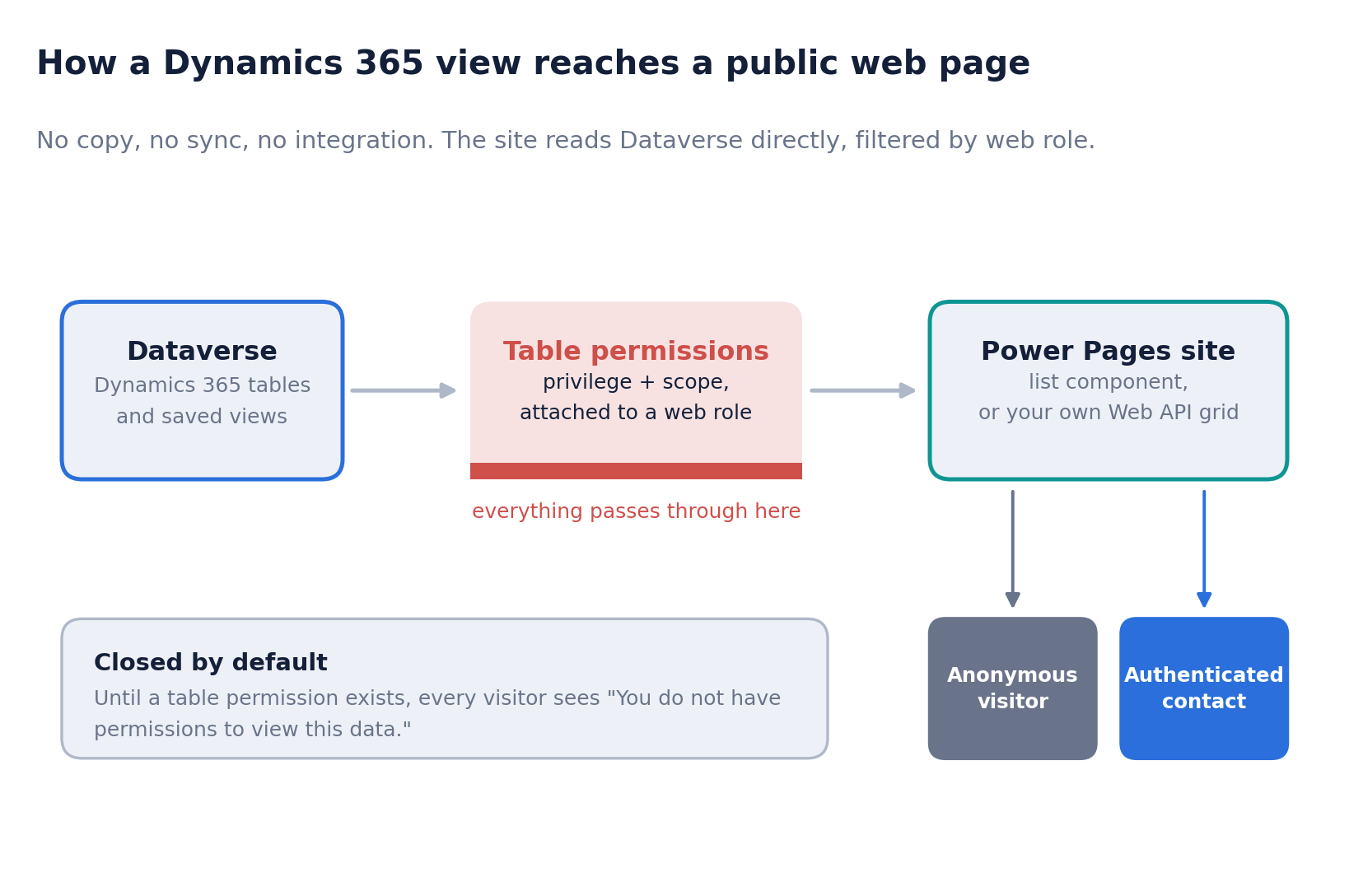
Worth being clear about the architecture, because people new to Power Pages often assume there is a sync or an integration involved. There is not. Dynamics 365 apps store their data in Dataverse, and a Power Pages site provisioned in the same environment reads that data directly: no copy, no ETL, no staging table.
One consequence catches people out: the site has to be in the same environment as the data. A site created in a different environment cannot see those tables at all, and no configuration fixes it. Please check this first, as the remedy is to recreate the site.
The second consequence is the one that generates support tickets. An end user of a Power Pages site is not a Dataverse user. Dataverse role-based access control does not apply to them. Portal users live in the contact table, and their access is governed by web roles and table permissions, which is a completely separate security model that you have to configure deliberately.
Approach A: the list component
A list binds a page component to a saved Dataverse view and renders it as a grid with search, sorting and paging. The Excel export is a checkbox on the Actions tab called Download list contents, which produces a native .xlsx file.
The whole build is four steps: get the view right in the Data workspace, drop a List component on the page and bind it to that view, enable the download action, then create a table permission and attach it to a web role. Preview, publish, done.
The view is doing more work than it appears to. Only the columns in the bound view are rendered, and only those columns appear in the Excel file. So the export is configured in Dynamics 365, not in Power Pages. If someone asks why the spreadsheet is missing a column, you are looking at the view definition, not the site.
For the practitioners
- The download action queries records using FetchXML, so FetchXML limitations apply to the export. This matters for very wide views, aggregate columns and some link-entity scenarios.
- The export respects table permissions. Users can only export rows they are already allowed to see, so the download does not open a hole behind the grid.
- Turn on Modern list for shimmer loading, infinite scroll, inline column filters and alternating row colours. It is in preview, but it offers a noticeably better end-user experience,e and the styling is consistent across lists.
- You can bind multiple views to a single list and let users switch between them. Cheaper than building several pages.
- Read-only privilege alone is enough for both viewing and Excel downloads. Do not add Create, Write or Delete unless the page genuinely edits data.
Approach B: your own grid on the Web API
The pro-code route queries Dataverse from the browser using the portal Web API, renders whatever markup you like, and builds the spreadsheet client-side with a library such as SheetJS. Full control over layout and over the exact shape of the exported file.
First, the Web API is off by default and is enabled per table through site settings, using the table logical name. Two settings; the second is mandatory.
| Site setting | Value | Notes |
|---|---|---|
| Webapi/account/enabled | true | Turns the Web API on for that table |
| Webapi/account/fields | name,revenue,telephone1 | Or an asterisk for all. Omit this, and you get “No fields defined for this entity” |
| Webapi/error/innererror | true | Optional, but makes debugging considerably less painful |
URLs use the table’s EntitySetName, the plural collection name, not the logical name. For accounts,nt that is accounts, giving a route of /_api/accounts. The site handles authentication, so there are no tokens to manage.
async function getRecords() {
  const url = "/_api/accounts?$select=name,revenue,telephone1"
            + "&$orderby=name asc&$top=500";

  const res = await fetch(url, {
    method: "GET",
    headers: {
      "Accept": "application/json",
      "Content-Type": "application/json; charset=utf-8"
    }
  });

  if (!res.ok) throw new Error("Web API error " + res.status);
  const data = await res.json();
  return data.value;
}
Web API operations are case-sensitive. Always use $select rather than returning every column.
With the records in hand, the export is a few lines. Reference SheetJS from a CDN, map the records into the shape you want in the spreadsheet, and write the file.
function downloadExcel(records) {
  const rows = records.map(r => ({
    Account: r.name,
    Revenue: r.revenue,
    Phone:   r.telephone1
  }));

  const ws = XLSX.utils.json_to_sheet(rows);
  const wb = XLSX.utils.book_new();
  XLSX.utils.book_append_sheet(wb, ws, "Accounts");
  XLSX.writeFile(wb, "accounts.xlsx");
}
For a simpler export, build a CSV string and download it via a Blob. SheetJS earns its place when you need real .xlsx, multiple sheets or formatting.
There is a trap here that the documentation states plainly, and people still hit it. Every column returned by a Web API call must be explicitly listed in the table permission configuration. Lookup columns are the usual casualty, because their API name differs from the logical name: you ask for a lookup and get back a 403 with AttributePermissionIsMissing. The fix is to add the column to the permission, not to rewrite the query.
Choosing between them
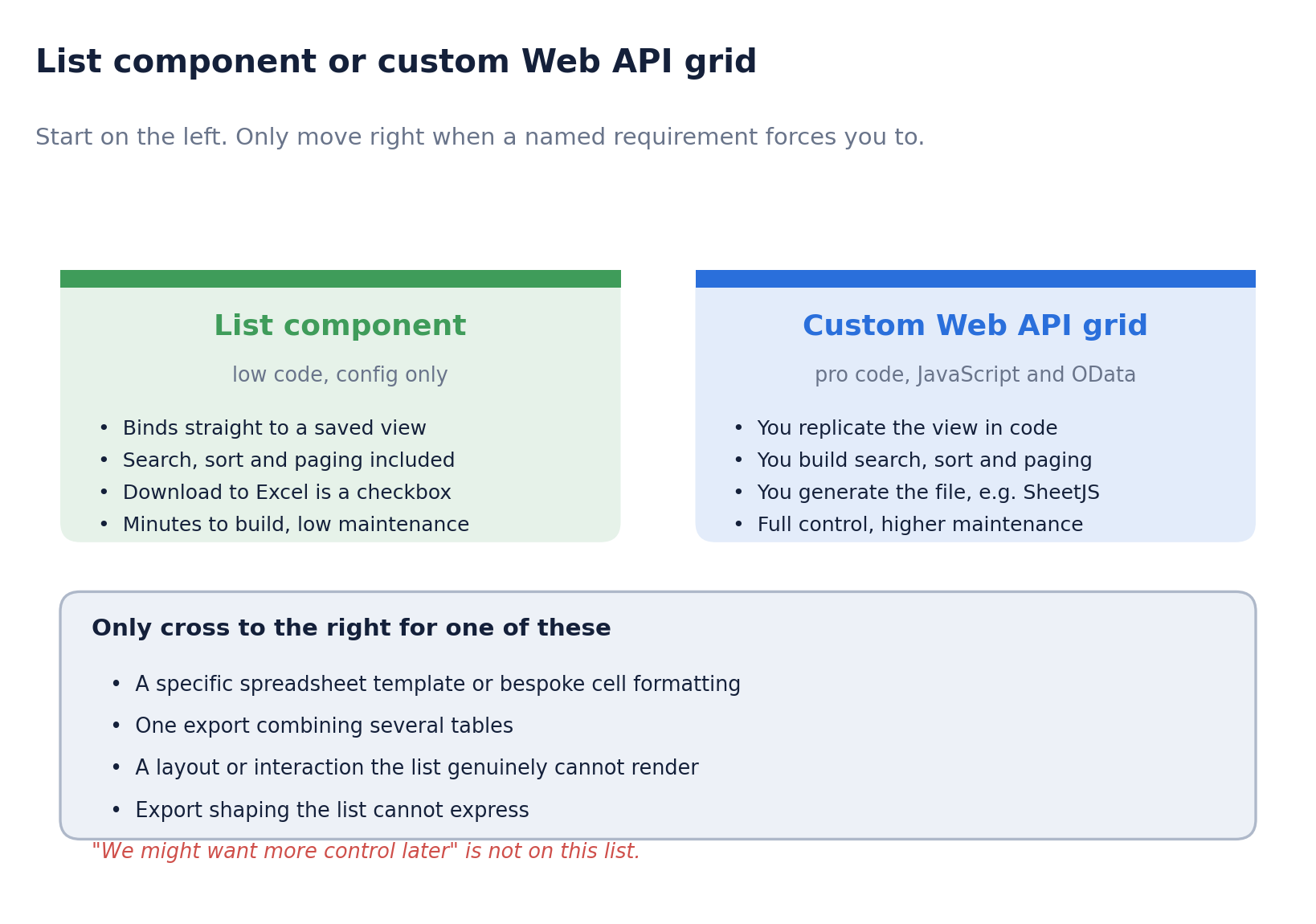
My position on this is not subtle. Please build it with the list component, and reach for the Web API only when you can name a specific requirement the list cannot meet.
The custom route is not harder to build. That is precisely why it is tempting, and why the cost is invisible at the point of the decision. You are taking on ownership: search, sorting, paging, empty states, error handling, accessibility, and column changes are all yours now, forever, and none of them is included in the estimate. Two years later somebody wants a column added, and it is a developer task with a release rather than a five-minute view edit.
The question is not which approach you could build. It is which one you want to still be maintaining in three years.
The security model, which is where the time actually goes. The same thing governs both approaches.
Both approaches are governed by the same thing, and it is worth understanding properly rather than clicking until the grid appears. Access through lists, forms, Liquid and the Web API is closed by default. You open it with a table permission attached to a web role.
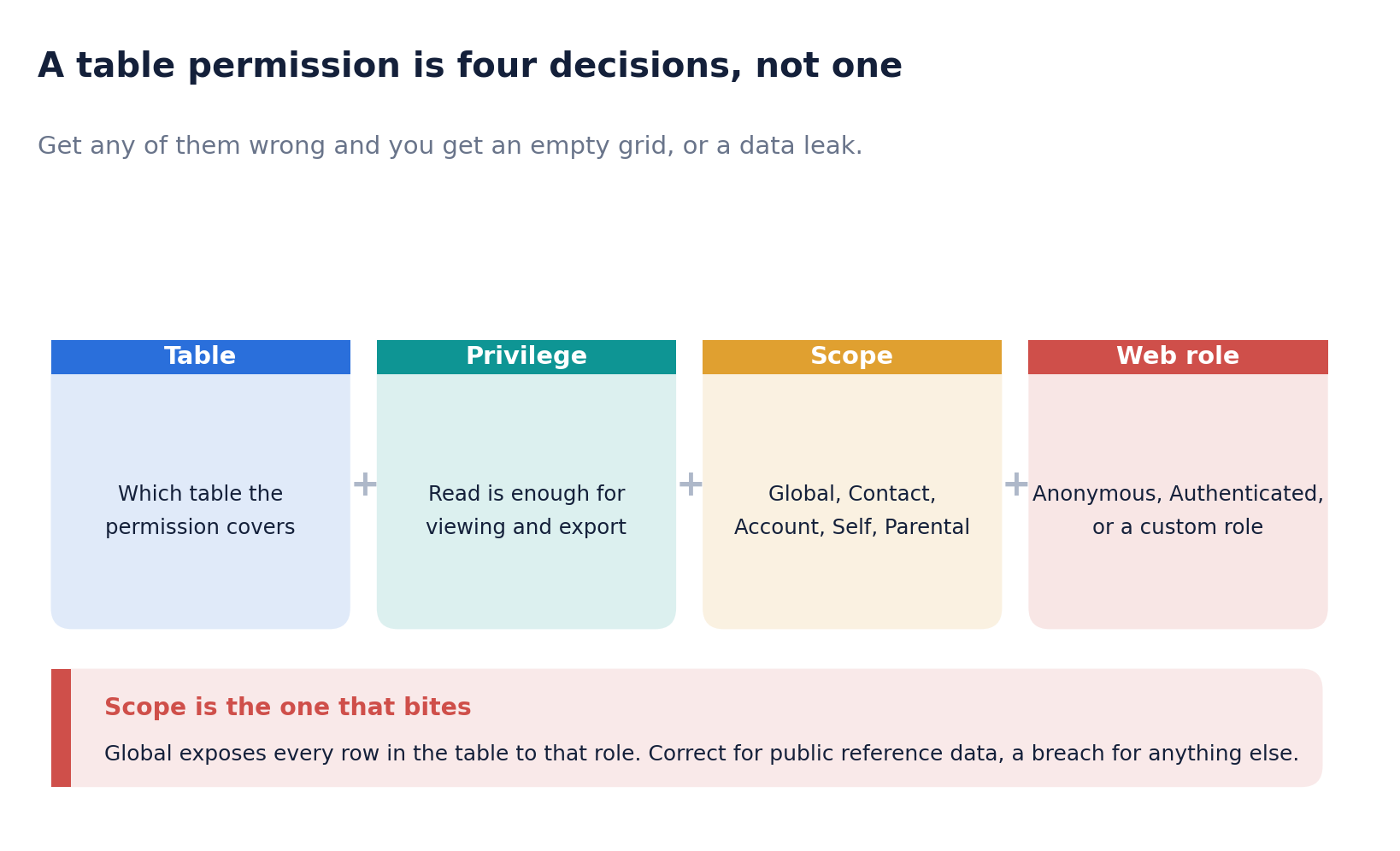
Scope deserves real attention because the failure modes point in opposite directions. Choose Global and every row in the table is exposed to that web role, which is right for genuinely public reference data and a disclosure incident for anything else. Choose Contact or Account and records are filtered to those related to the signed-in user through a lookup relationship, which is what you almost always want for anything personal, but which returns an empty grid and no error when the relationship is missing or unpopulated.
That empty grid with no error message is the single most common support call on Power Pages, and it is rarely a bug.
When it does not work
| Symptom | Almost always |
|---|---|
| “You do not have permissions to view this data” | No table permission for that user’s web role. Create a Read permission and attach the right role. |
| Grid renders but is empty, no error | View filter excludes everything, or Contact and Account scope with no related records for the signed-in user. |
| Download button missing | Download list contents was never enabled on the Actions tab. |
| “No fields defined for this entity” | The Webapi/<table>/fields site setting is missing, or the record is not Active. |
| Web API returns 403 or an empty set | Table permission missing for the role, or Webapi/<table>/enabled is not true. Check both. |
| 403 with AttributePermissionIsMissing | A column, usually a lookup, is not listed in the table permission. Add the column. |
| New web role not visible in the studio | Restart the design studio or hard refresh with Ctrl+F5. |
The honest summary
This requirement is a genuinely good fit for low code. A saved view, a list component, and one table permission deliver a searchable grid and a working Excel export, and the ongoing cost of changing it is close to zero because changing it means editing a view.
The Web API route is well-documented, works properly, and is the right answer when you need a specific spreadsheet template, an export spanning several tables, or an interface that the list cannot render. This is not the right answer; the actual driver is that writing the code looked more interesting than configuring the component, which, if we are being candid about our profession, is a meaningful share of the time it gets chosen.
What to take away
- Confirm the site and the data are in the same environment before anything else. Nothing fixes this later.
- Portal users are contacts governed by web roles, not Dataverse users. It is a separate security model you must configure.
- The bound view defines both the grid and the Excel columns. Keep it lean and get it right in Dynamics 365 first.
- Read privilege is enough for viewing and export. Add write privileges only if the page really edits data.
- Choose scope deliberately. Global exposes every row; Contact and Account silently return nothing when the relationship is missing.
- Only go pro-code for a requirement you can name out loud.
